Dynamic Timestamp Update

Gordon Smith
We’re shipping two changes today that make the times in your notifications a little easier to read at a glance, and less confusing for your server members: an updated “Scheduled for” line that now includes a live countdown, and a new way to embed time-zone-aware timestamps directly in your event descriptions.
An Updated “Scheduled for” Line
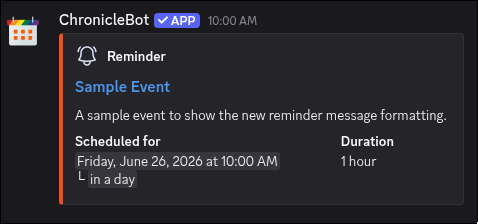
We decided to change how our relative times are displayed in event Reminder messages. We’ve always shown a “starting in” time in the header of the message, but that was a little confusing because we couldn’t use Discord’s dynamic time codes. This meant a “starting in 1 hour” message was only true at the exact time it was sent.
In order to address this, the Scheduled for field now shows a countdown beneath the exact time. Previously it showed only the full date and time; now it adds an indented relative line underneath. The announcement header has been simplified to match, showing just the reason for the message rather than tacking the countdown onto it:
All-day events are unchanged, they still show just the date.
Live Timestamps You Can Type Into an Event
You can now place a special time code inside a Google Calendar event description, and Chronicle will turn it into a true Discord timestamp when the event is posted. Instead of a fixed time that’s only correct in your time zone, each member sees the time in their own time zone, and it can even count down on its own (e.g. in 3 hours).
The token goes in your event description using square brackets:
[t:UNIX_TIMESTAMP] shows date + time (default)[t:UNIX_TIMESTAMP:STYLE] shows the time using an optional styleWhere UNIX_TIMESTAMP is the Unix time (in seconds) of the moment you want to display. The optional style letter controls how it renders:
d: short date (06/24/2026)D: long date (June 24th, 2026)t: short time (9:01 AM)T: long time with seconds (9:01:00 AM)f: long date + time (June 24th, 2026 at 9:01 AM)F: long date with day of week + time (Wednesday, June 24th, 2026 at 9:01 AM)s: short date + time (06/24/2026 9:01 AM)S: short date + time with seconds (06/24/2026 9:01:00 AM)R: relative (in 3 hours)
If you would like a good example of these formats, or need a tool to determine the correct Unix timestamp, we recommend HammerTime.
Why Square Brackets?
Discord’s native timestamp format uses angle brackets (<t:1750770060>) but Google Calendar treats anything wrapped in <...> as an HTML tag and strips or mangles it before we ever see it. That made raw Discord tokens impossible to use reliably.
We settled on a Google Calendar safe form using square brackets. You type the square-bracket [t:...] version in Google Calendar, and Chronicle automatically converts it to Discord’s <t:...> when posting to your server. If you use an Event Feed we also convert it back to [t:...] when writing to your calendar.
If you already use custom templates, this complements the existing discordDateTime function, but unlike templates, the new token works right inside a plain event description, no template required. You can find the full syntax and style options in our Dynamic Timestamps documentation.
We hope you enjoy these updates and as always, if you have any questions or feedback feel free to reach out to us on Discord, Mastodon, or Twitter.