
Managing Events With Google Calendar
Once you have created an Event Notifier, you can manage all of your events from Google Calendar.
Creating Events
Section titled “Creating Events”As you can see in the image below, most of the event properties are rather self-explanatory (event title and description for example), but a few have special features.
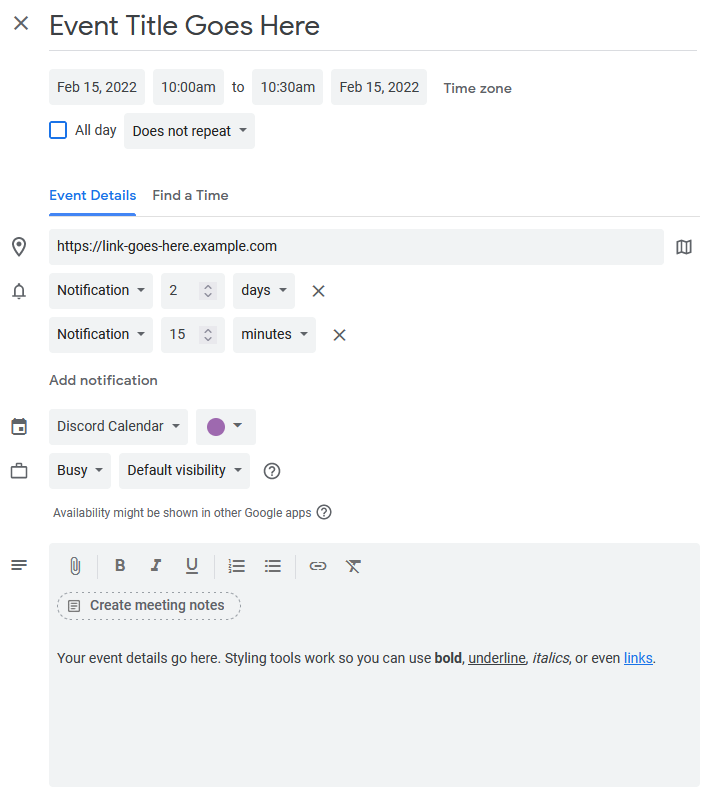
- Event Title
-
The event’s title is the main header for the event. This title, within Discord, becomes a link based on how you configure your notifier settings.
- Location
-
If a valid URL is entered in the location field, the event title will become a clickable link within reminders sent to Discord. You can also use this field to enter physical locations, or specify Discord Voice Channels.
- Notifications
-
Event notification times are used by Chronicle Bot to schedule reminder messages to your Discord channel. This allows you to customize reminders for a specific event. Notification times set here can be combined with any set within Chronicle Bot directly.
- Event Details
-
The details entered here are used in Discord reminders to inform your members. Any styling, lists, or links entered here will show up in Discord. This can be useful if you need to provide multiple links for an event.
You can also include Front Matter in the event description to customize how the event appears in Discord.
Dynamic Timestamps
Section titled “Dynamic Timestamps”You can embed a dynamic, time-zone-aware timestamp directly within an event’s description. When the event is posted to Discord, Chronicle converts the timestamp into one of Discord’s native time formats, which each member sees in their own time zone and which can display a live countdown such as in 3 hours.
A timestamp is added using square brackets containing a Unix timestamp (in seconds):
[t:1750770060]By default this displays both the date and time. To control how the timestamp is rendered, add an optional style letter after a colon:
[t:1750770060:R]The available styles are listed below.
| Style | Description | Example |
|---|---|---|
d | Short date | 06/24/2026 |
D | Long date | June 24th, 2026 |
t | Short time | 9:01 AM |
T | Long time with seconds | 9:01:00 AM |
f | Long date + time (default) | June 24th, 2026 at 9:01 AM |
F | Long date with day of week + time | Wednesday, June 24th at 2026 9:01 AM |
s | Short date + time | 06/24/2026 9:01 AM |
S | Short date + time with seconds | 06/24/2026 9:01:00 AM |
R | Relative | in 3 hours |
If you need help generating a Unix timestamp for a specific moment, https://hammertime.cyou is a handy tool for building and previewing Discord timestamps.
If you use Custom Message Templates, the discordDateTime function provides the same Discord time formats from within a template. The timestamp token described here is intended for plain event descriptions, where no template is involved.
Updating Events
Section titled “Updating Events”Chronicle Bot subscribes to real-time updates for the Google calendars you have connected. This subscription caused Google to send updates to the bot as you are making changes in your calendar. Updates are then applied within Discord to the reminders, summaries, and synced events that have already been created.
Deleting Events
Section titled “Deleting Events”Events that have been deleted in Google Calendar will cause the bot to perform several cleanup processes.
- Synced Discord events will be canceled
- Event Summaries that contain the event will be updated to remove the cancelled event
- Reminder or Update messages will be edited to reflect the cancellation (based on your Activity Messsages Settings)
Ready to automate your Discord events?
Add Chronicle Bot to your server and connect your first calendar in about 5 minutes.